Motionprint Ergo takes a motion capture recording and produces a validated ergonomic risk assessment report — entirely on your local machine. This article walks through the workflow as you experience it in the app, from choosing an assessment method to exporting the finished report.
1 Overview
The workflow follows six phases. Each phase corresponds to a screen or step in the application:
-
1Select an assessment method
Choose the ergonomic standard to apply — for example, the NIOSH Lifting Equation or KIM-LHC.
-
2Upload your motion capture recording
Import a motion capture file. The app validates it automatically before proceeding.
-
3Configure the assessment
Trim the recording, define lifting moments, and enter task parameters and metadata.
-
4Process
The backend analyses the recording locally with a real-time progress indicator.
-
5Review results
Explore risk scores, the 3D posture viewer, and findings across three result tabs.
-
6Export
Save a branded PDF report or a structured Excel export to a folder of your choice.
All processing runs on your machine. No motion data, session files, or reports are uploaded to any external server. The only external communication is a periodic licence check.
2 Selecting an Assessment
The first screen in the workflow is the report selection page, where you choose which ergonomic assessment method to apply to your recording.
Currently available methods include the NIOSH Lifting Equation — which produces a Lifting Index (LI) and Composite Lifting Index (CLI) for multi-task scenarios — and KIM-LHC (Key Indicator Method for Lifting, Holding, and Carrying), which maps risk to a four-level colour-coded band. Additional methods are planned and will appear on this screen as they become available.
3 Uploading Motion Data
After selecting an assessment method, you choose your motion capture source and upload a recording file.
Supported input
Motionprint Ergo currently supports Xsens MVNX recordings — an XML-based format that holds the complete full-body motion time-series exported from Xsens MVN Analyze Pro. The recording contains segment positions, orientations, joint angles and foot contacts. Motion data can be captured using Xsens MVN Awinda (wireless IMU sensors) or MVN Link (body suit).
File validation
Once a file is selected, the app validates it before allowing you to proceed. The validation checks that the file is valid, contains the required subject elements and frame rate attributes and has at least one normal motion frame with the required position and orientation data. If any check fails, a clear error message tells you exactly what is missing or incorrect.
4 Configuring the Assessment
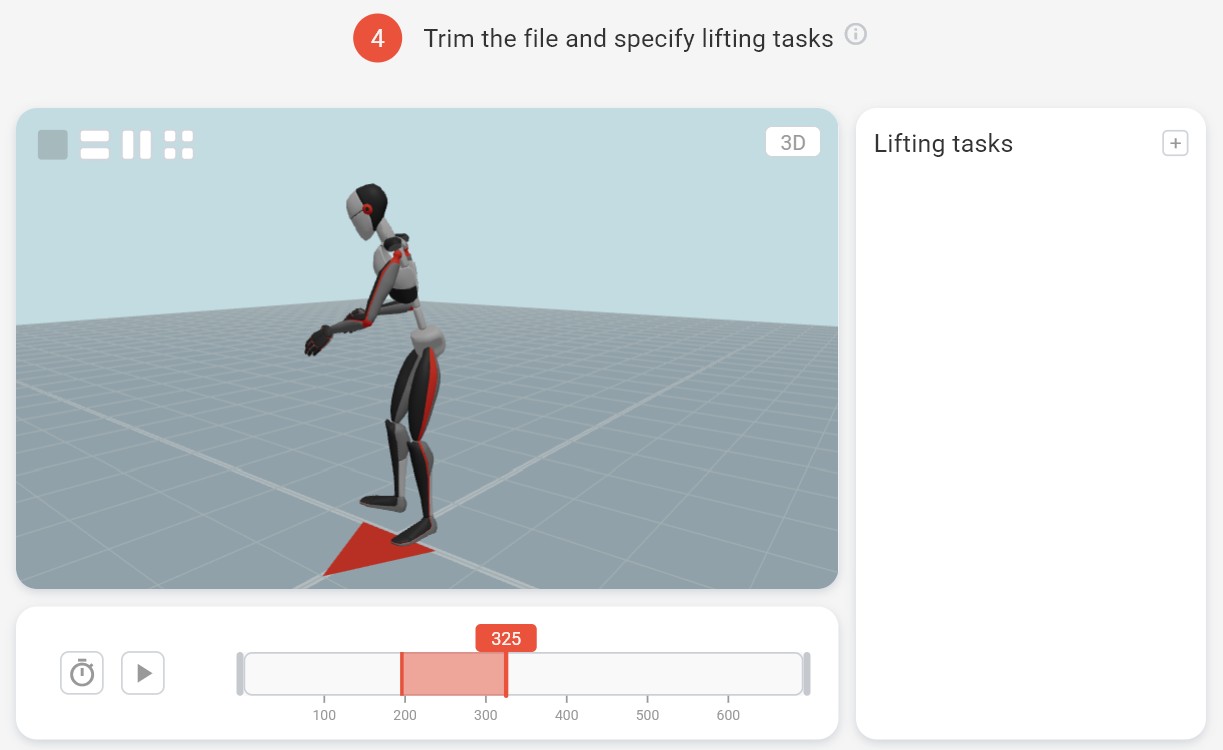
The input configuration screen is where you prepare the recording for analysis. There are three things to set up here: trimming the recording, defining lifting moments, and entering task parameters.
Trimming the recording
Use the playbar to set the start and end of the task window you want to analyse. This focuses the assessment on the relevant movement and excludes idle time at the beginning or end of the recording.
Defining lifting moments
A lifting moment is a specific interval within the trimmed recording — defined by a start frame and an end frame — that represents one discrete lift or handling action. You can define one or more lifting moments. The system analyses each moment separately and, if applicable, produces composite scores and/or averages across all of them when multiple moments are defined. This step is what gives the peak detection its context: the pipeline identifies the highest-risk frame within each user-defined moment.
Task parameters and metadata
The remaining fields on this screen depend on the selected assessment method. In general, you will enter task parameters such as load weight, task frequency, work duration, and body posture conditions — the exact fields vary by method. You will also enter metadata such as the workplace name, evaluator name, subject identifier, and assessment date, which appear in the exported report.
5 Processing
Once you confirm your configuration and press Process, the backend begins analysing the recording. A progress overlay appears with real-time status messages and a percentage bar, updated as each stage of the pipeline completes.
The processing pipeline extracts biomechanical variables frame by frame — segment positions, orientations, joint angles, posture deviation metrics — and then computes the risk scores for each lifting moment using the selected assessment method. All of this runs locally on your machine; no data is transmitted externally during processing.
Processing time depends on recording length and the number of lifting moments defined. Most assessments complete within a few seconds. The progress bar gives you a live indication of how far through the analysis the backend is.
6 Viewing Results
After processing completes, results are displayed across three tabs. Each tab surfaces a different layer of the assessment output.
Tab 1 — Score Overview
The Score Overview tab presents the results in the same structure as the manual version of the selected assessment method — the way an assessor would traditionally fill it in on paper or in a spreadsheet. Each variable, multiplier, and sub-score is laid out as it appears in the official method, so the output is immediately familiar and auditable. The headline risk score is mapped to a colour-coded risk band with clearly defined thresholds and recommended actions. When multiple lifting moments are defined, composite or aggregated scores are shown alongside the per-moment breakdown.
Tab 2 — In-Depth Analysis
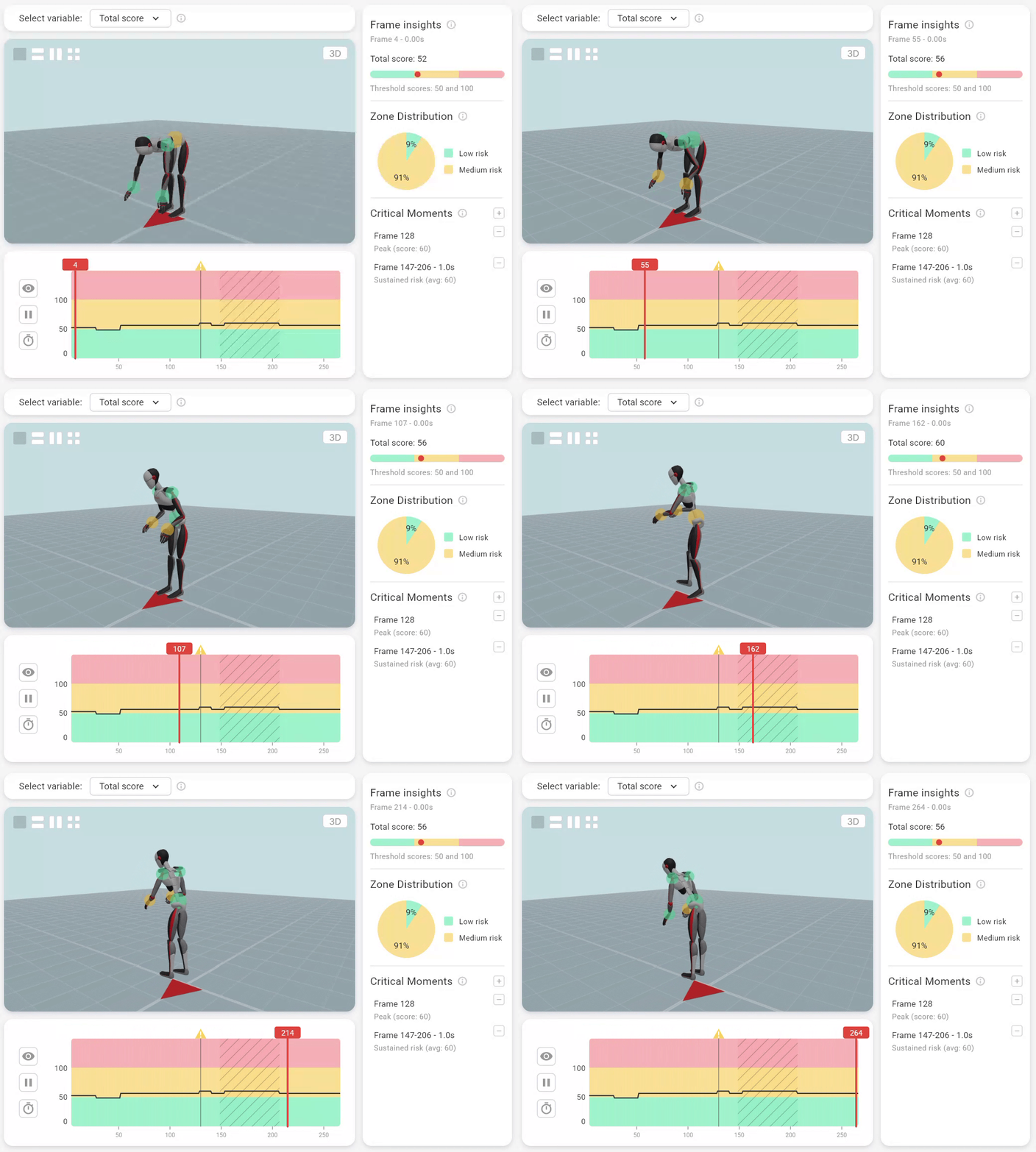
The In-Depth Analysis tab is built around a 3D avatar viewer. The avatar plays back the worker's exact posture frame-by-frame, animated from the motion capture data. A risk score graph is displayed alongside the avatar and stays in sync — so as the avatar moves through the recording, the graph highlights where in the task the risk was highest.
Playback controls let you play, pause, adjust speed, and jump to any frame manually. You can also switch the viewport between the different lifting moments you defined, inspecting each one independently. This makes it straightforward to explain a specific finding — such as an asymmetric peak load — to a worker or a client in concrete visual terms.
Tab 3 — Findings
The Findings tab presents the assessment's recommendations and observations in a structured format suitable for inclusion in a client report. The content and visibility of this tab can be configured in the app's report settings — it can be toggled off if you prefer a results-only output.
7 Exporting Reports
Once you are satisfied with the results, you can export the assessment in PDF or Excel format — or both.
PDF report
The PDF export is a fully formatted assessment document ready to share with clients, H&S managers, or regulatory bodies. It includes the headline risk score, a breakdown of contributing risk factors, findings and recommendations, and embedded 3D posture screenshots from the In-Depth Analysis tab. Your organisation's branding — logo, accent colour, and company name — is applied automatically based on your settings in Settings → General.
Excel export
The Excel export provides structured data with colour-coded risk levels, making it straightforward to compare results across assessments, build trend charts, or feed data into an existing H&S management system. Like the PDF, it includes embedded 3D posture screenshots alongside the tabulated score data.
Saving and filenames
When you export, a file picker opens so you can choose exactly where to save the file. The app remembers the last-used folder for each report type and format. Export filenames follow a customisable template — for example, {workstation}_{record_date}_{report_type} — which you can configure in report settings.