This article walks through the complete process of running a NIOSH assessment in Motionprint Ergo — from selecting the report type to clicking Process. Every screen, field, and control is covered in the order you encounter them.
1 Overview
A NIOSH assessment in Motionprint Ergo spans three separate screens and five numbered steps. The table below shows the complete flow:
| Step | Label in the app | Screen |
|---|---|---|
| 1 | Select the report you want to create | Create page |
| 2 | Select your input source | Input Source page |
| 3 | Setup your input source | Input Source page (same screen) |
| 4 | Trim the file and specify lifting tasks | Input page — 3D viewport on left, lifting tasks on right |
| 5 | Provide task information | Input page (same screen, scrolls down from step 4) |
After completing all five steps, the Process button at the bottom of the input page becomes active. Clicking it submits the assessment and navigates you to the report.
2 Select Report
The assessment begins on the Create page, where you choose which type of report to run. Select the NIOSH tile from the available options, then click Continue to proceed to the next step.
3 Select Input Source
The next screen is the Input Source page. Select your input source from the available tiles. Currently only Xsens MVNX File is supported. As new capture methods become available they will become selectable here.
4 Setup Your Input Source
After selecting your input source, the upload control appears on the same Input Source screen. For Xsens MVNX, click the upload area to browse your system and select a .mvnx file.
Once a valid file is loaded, Motionprint Ergo takes you to the main input page (steps 4 and 5). If the file is invalid or corrupted, an error message appears and you can try again.
Before importing, export your session from Xsens MVN as a MVNX file. This format preserves all motion data and skeletal information needed for analysis. For a full walkthrough of the export and upload process, see Uploading & Processing Xsens Data.
5 Trim the File and Specify Lifting Tasks
This is the main input page — a new screen with a 3D viewport on the left showing the loaded avatar and a lifting tasks panel on the right. This step is where you define the observation window and mark each individual lifting action.
The 3D viewport and playback controls
The viewport renders the motion capture recording as an animated 3D avatar. Below the viewport are playback controls:
- Play/pause button — Start or stop the animation.
- Speed selector — Choose playback speed: 0.5× (slow motion), 1× (normal), 1.5×, or 2× (double speed).
Below the playback controls is the timeline — a horizontal bar representing the full duration of the recording. You use the timeline to trim the recording and mark lifting tasks. For a full overview of the viewport controls and navigation, see 3D View & Interface Controls.
Trimming the observation window
The observation window defines which portion of the recording is included in the assessment. Anything outside the trimmed range is ignored.
Two draggable vertical handles appear on the timeline:
- Start handle (left) — Drag to set where the observation period begins.
- End handle (right) — Drag to set where it ends.
The region outside the two handles is shown in a shaded colour, indicating that part of the recording is excluded from the assessment. As you adjust the handles, Motionprint Ergo automatically recalculates the lift frequency — the number of lifting tasks divided by the trimmed duration in minutes. Frequency must fall within NIOSH's acceptable range of 0.2–15 lifts/min. If it falls outside this range, a warning is shown and the Process button stays disabled until you correct it.

Example: 5 lifting tasks in a 2-minute observation window gives a frequency of 2.5 lifts/min — within the acceptable range. If the frequency is too low, extend the window or add more tasks. If too high, narrow the window or remove tasks.
Defining lifting tasks
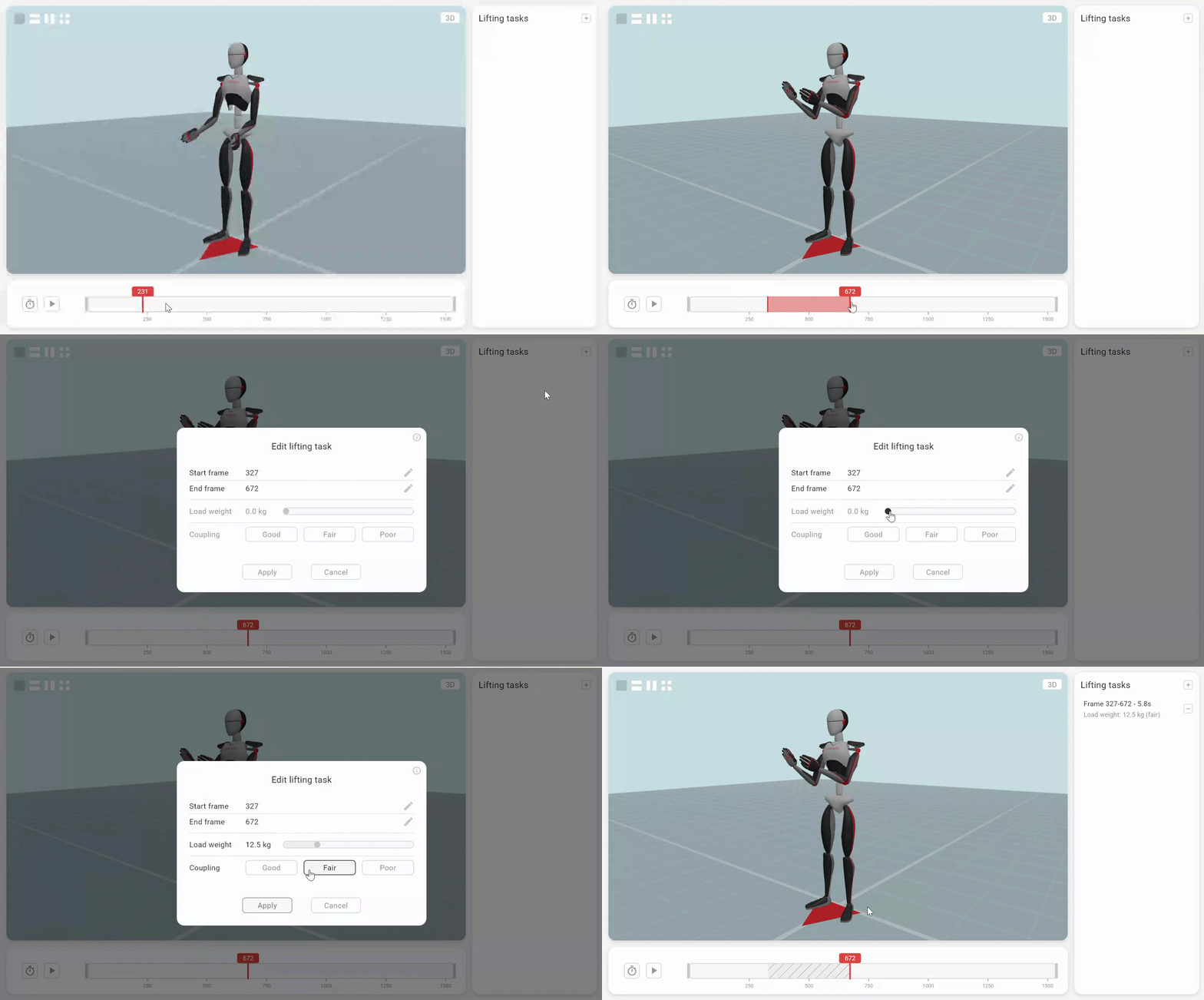
A lifting task is a distinct lifting action within the observation window. Each task is defined by a start frame and an end frame. Tasks must have a minimum duration of 1.0 second. To add one:
- Click and drag on the timeline to highlight a frame range. The selection is shown in the branding colour configured in your settings.
- Click the + button to create a task from that range.
- The task appears in the list on the right. Fill in the required fields:
- Start frame — Auto-populated from your selection; editable.
- End frame — Auto-populated from your selection; editable.
- Load weight — Weight of the object being lifted, in kilograms. Set using the slider.
- Coupling rating — Select Good, Fair, or Poor to describe the grip quality.
| Coupling rating | Description |
|---|---|
| Good | Optimal handles or cut-out handholds on a container; comfortable, secure grip with the hand well-wrapped around the object. |
| Fair | Less-than-optimal handles or grip surfaces; moderate difficulty maintaining a firm hold on the object. |
| Poor | No handles; fingers flexed approximately 90° at the knuckle; awkward, unstable, or bulky object with no suitable grip point. |
You can edit or delete tasks in the list at any time. If you adjust the trim handles to exclude a task's frame range, that task is removed or adjusted automatically.
Multiple lifting tasks and CLI mode
If you define two or more lifting tasks, Motionprint Ergo automatically switches to multi-task mode. Each task receives a Single-Task Lifting Index (STLI), and the results are combined into a Composite Lifting Index (CLI). This is appropriate when the worker performs several distinct lifting movements at the same workstation.
For a full explanation of how the CLI is calculated, see the Understanding the NIOSH Assessment article.
6 Provide Task Information
Still on the same input page, scrolling below the timeline and task list brings you to the task information form. This collects metadata about the assessment session. Some fields are always shown; others appear or are hidden based on your NIOSH report settings.
| Field | Required? | Description |
|---|---|---|
| Workplace | No | Name or description of the workstation being assessed (e.g. "Assembly Line Station 3"). This field is always visible and cannot be hidden in settings. |
| Evaluator | No | Name or ID of the assessor. Can be hidden via "Hide evaluator name" in NIOSH report settings. |
| Operator | No | Name or ID of the worker being assessed. Can be hidden via "Hide operator name" in settings. |
| Gender | No | Worker gender (Male / Female). Can be hidden via "Gender not required" in settings. |
| Date | Yes | The evaluation date. Set automatically to today's date using separate year, month, and day selectors. |
| Working time | Yes | Total hours and minutes at the workstation per shift. Used to determine the Frequency Multiplier (FM) duration category. |
Working time and duration category
The Working time value determines which FM lookup table is applied. Motionprint Ergo categorises the shift duration automatically:
- Short duration — ≤ 1 hour at the workstation.
- Moderate duration — Greater than 1 hour, up to 2 hours.
- Long duration — Greater than 2 hours.
The correct FM table is selected automatically once you enter the working time.
Additional modifiers
If any additional modifiers are enabled in your NIOSH report settings, they will appear in the lifting task editing window so they can be set per individual task. The exception is the Extended duration (eM) modifier, which is applied automatically based on the working time you entered — no manual selection is needed.
| Modifier | Factor | How it is set |
|---|---|---|
| Two-person lift (Pf) | 0.85 | Set per lifting task in the task editing window. The load is lifted by two workers simultaneously, sharing the weight. |
| Additional physical tasks (Tf) | 0.80 | Set per lifting task in the task editing window. The worker performs other strenuous tasks (carrying, pushing, pulling) in addition to lifting. |
| One-hand lifting (Of) | 0.60 | Set per lifting task in the task editing window. A lift is performed with only one hand instead of two. |
| Extended duration (eM) | Varies | Applied automatically based on the working time entered above. Applies when the work shift exceeds 8 hours: >8–9 h → 0.97, >9–10 h → 0.93, >10–11 h → 0.89, >11–12 h → 0.85. |
The additional modifiers sub-section only appears if at least one modifier is enabled in your NIOSH report settings. If no modifiers are enabled, this section is hidden entirely and you proceed directly to processing.
7 Processing the Assessment
Once all required fields are filled and at least one lifting task is defined, the Process button at the bottom of the input page becomes active. Click it to submit the assessment.
A loading overlay appears showing progress and current status as the NIOSH calculation runs. Once complete, Motionprint Ergo automatically navigates to the report view, where you can review the Score Overview, Analysis, and Findings tabs.
If an error occurs during processing, an error message is displayed. You are returned to the input page where you can correct the issue and try again.
Making changes after processing
If you are on the report page and want to adjust any input — tasks, task information, or modifiers — click the Edit button on the report page. This returns you to the input page with all your existing settings intact, so you can make changes and re-process without starting over.