This guide explains how to activate your Motionprint Ergo license, manage seat assignments across devices, and transfer your license to a new machine when needed.
1 License Activation
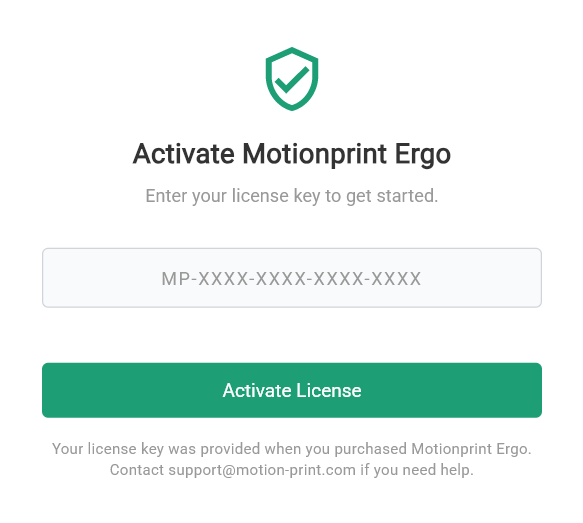
Your license key is provided by email upon purchase. It follows the format below and is entered directly in the application during first launch.
Online activation
Online activation is the standard method and completes in seconds. The application communicates with the Motionprint License Server to validate your key and register your device.
Open Motionprint Ergo. The activation screen appears automatically on first launch.
Enter your license key in the format MP-XXXX-XXXX-XXXX-XXXX and click Activate License.
The app submits your license key and machine fingerprint to the License Server for validation.
On successful validation, the license is activated and the application opens.
Initial activation requires an internet connection. Once activated, the app can run offline — see What's Included in Your License for details on the offline grace period.
Required information
2 Seat Management
Each license includes a set number of seats based on your plan. Each seat allows activation on up to 2 devices (for example, a workstation and a laptop). An Individual plan includes 1 seat (2 devices total).
Your license in the app
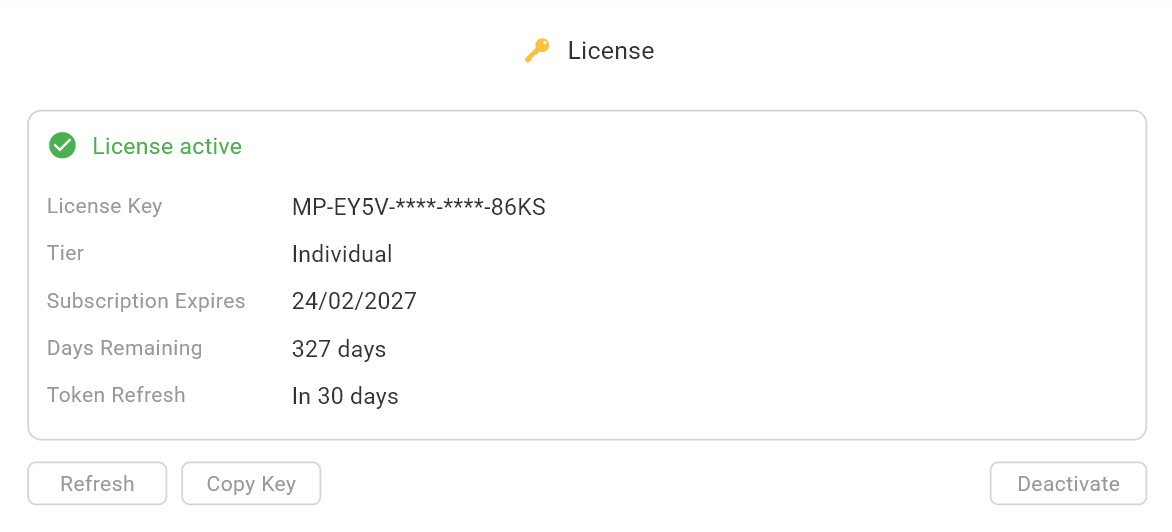
Go to Settings → License to see your license status, masked license key, tier, subscription expiry date and days remaining. From here you can Copy Key, Refresh the license with the License Server, or Deactivate the license on this machine — see Deactivating your license on this machine below.
Deactivating your license on this machine
Deactivation is done in the License section of the settings. It removes the license from the current machine and frees its device slot, so you can activate the same key on another device — for example when you replace a laptop or want to move a seat to a colleague's workstation.
Open Settings from the sidebar and select the License tab (next to General and Reports).
In the License card, which shows your masked license key, tier, subscription expiry and days remaining, click Deactivate.
A Deactivate License dialog asks you to confirm: "This will remove the license from this machine and free the device slot. You can re-activate later with the same key." Click Deactivate.
Once the License Server has released the slot, the app confirms "License deactivated successfully". Motionprint Ergo is no longer activated on this machine; the next time you want to use it here, enter your license key again on the activation screen.
Deactivation removes the license from this machine in all cases, but the device slot is only released when the License Server can be reached. If you deactivate without an internet connection, the app shows "Local token removed (server unreachable — slot may remain used)" and the slot stays occupied. Reconnect before deactivating, or contact support@motion-print.com to release the slot.
Your projects, recordings and settings stay on the machine when you deactivate — deactivation only affects the license. If you need to free a slot on a machine you no longer have access to, contact support@motion-print.com.
3 License Transfer
Transferring your license to a new machine follows the same deactivate-then-activate pattern. The license key itself does not change — it is reused on the new device.
Transfer steps
In Motionprint Ergo on the old machine, go to Settings → License and click Deactivate, while connected to the internet. This releases the device slot, making it available for use on another machine. See Deactivating your license on this machine.
Install Motionprint Ergo on the new machine, launch it, and enter the same license key. Activation requires an internet connection, as described in Section 1.
4 Xsens SDK License for Live Recording
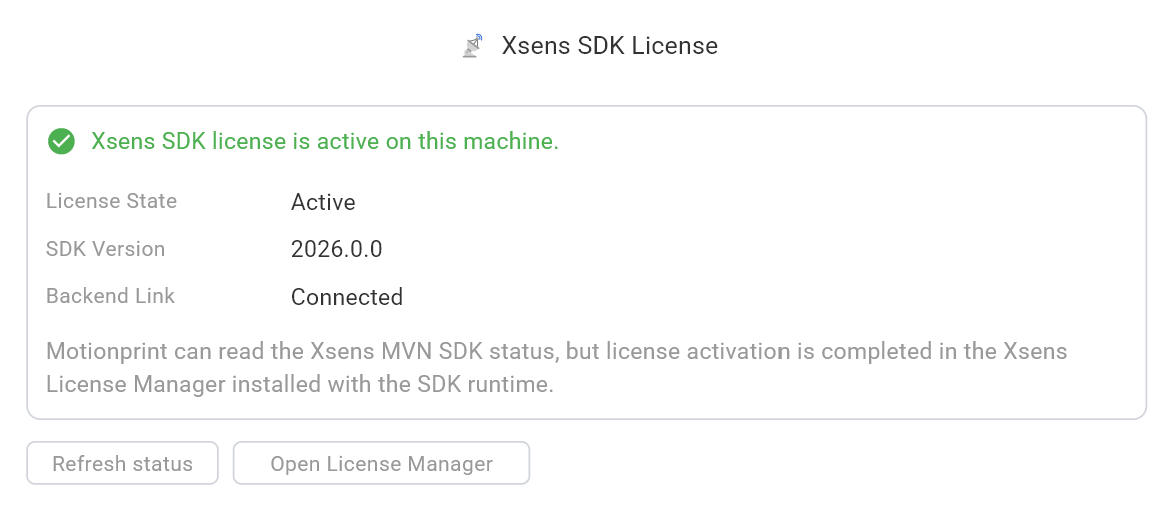
Live recording connects to Xsens hardware through the Xsens MVN SDK, and the MVN SDK needs its own active license on the machine. This license is separate from your Motionprint Ergo license key and is managed in Xsens License Manager, which the Motionprint Ergo installer sets up together with the MVN SDK runtime. Uploading .mvnx files and running reports don't need it. The MVN SDK license is an Xsens license, which you can purchase through Motionprint — contact support@motion-print.com.
Its status is shown in a separate Xsens SDK License card on Settings → License:
- License State — Active, Not active, or Unknown until the status has been checked
- SDK Version — the installed MVN SDK runtime
- Backend Link — whether the app's local processing service is reachable to check the license
Click Open License Manager to activate the MVN SDK license in Xsens License Manager, then click Refresh status. As long as the SDK license isn't active, the Record workflow shows an Xsens SDK license required notice with a shortcut to this page.