The Projects Database is your project library — a permanent collection of every analysis you save in Motionprint Ergo. Instead of re-running the same assessment from scratch, you can reopen any saved project, modify it, or re-export it as a PDF or Excel report with updated settings. This guide covers how to save projects, browse your library, filter and find what you need, manage project status, and understand what happens when you save a reopened project.
1 What is the Projects Database?
The Projects Database stores every project you choose to save — including the full calculation data, custom moments, settings, and metadata — so you can return to any assessment at any point.
Open it via Database in the main navigation, on the Projects tab. Next to it, the Recordings tab holds the Recordings Database: projects are finished, saved reports, recordings are the raw motion captures made with live recording.
The Projects Database is especially valuable for teams running repeated assessments at the same workstations, for compliance workflows that require an audit trail, and for any situation where you need to compare results across time or methodology versions.
2 Saving a project
Where to save
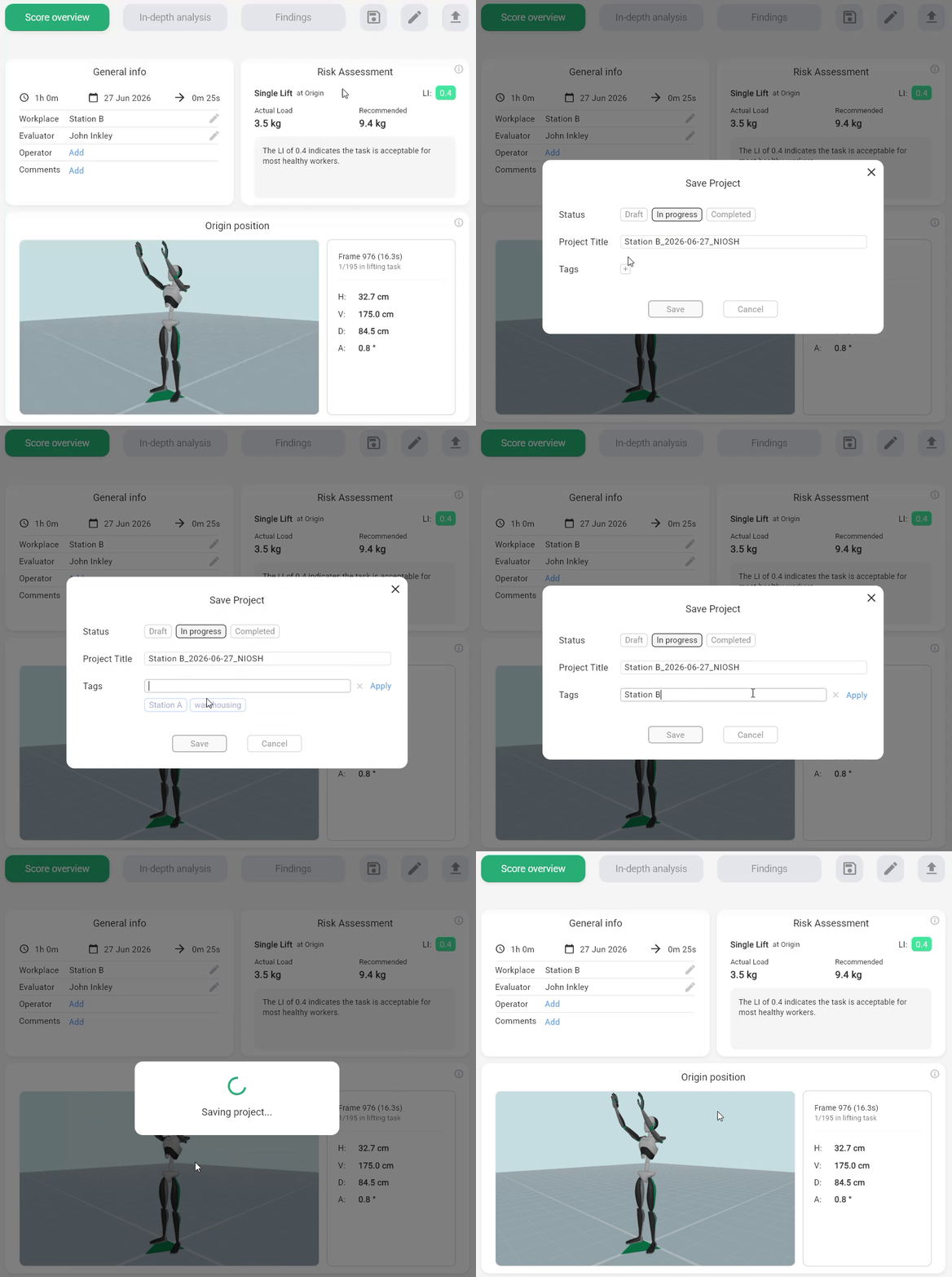
After running an assessment and generating results, you'll find a Save Project button on the results page, next to the Edit and Export buttons. Clicking it opens a save window where you can set a few things before confirming:
- Project title — a default name is applied based on your naming template in Settings, but you can adjust it here
- Status — choose between Draft, In progress, or Completed to reflect where the project stands
- Tags — add one or more tags to make the project easier to find later. When the report was created from a recording, the recording's tags are already filled in.
What gets saved
A saved project is a complete snapshot of your analysis. This includes:
- Analysis methodology and complete calculation data and findings
- Custom critical moments, if you created any
- Project metadata and subject information — including workplace, dates, and (depending on your privacy settings) subject-related fields such as operator name, evaluator name, gender, body height, age, and weight. For a full breakdown of what each privacy toggle controls, see Privacy Settings Explained.
- Company branding — if the "use company branding" setting is enabled at the time of saving, the active branding configuration is saved along with the project
- The analysis settings used at the time of saving. A reopened project keeps using these, also when you press Edit and process it again, so its scores stay comparable over time. To assess the same recording under different analysis settings, create a new report.
Project title naming template
The project title field in the save dialog is pre-filled based on a configurable naming template set in Sidebar → Settings → General → Database, on the Project title tab. One template is used for all report types. It uses the same placeholder variables as the PDF and Excel export templates, replaced with actual assessment data at the moment of saving.
Default template: {workplace}_{current_date}_{report_type}
Available variables
| Variable | Replaced with | Example value |
|---|---|---|
| {workplace} | Workplace entered in metadata | Assembly Line A |
| {operator} | Operator name entered in metadata | Maria Silva |
| {evaluator} | Evaluator name entered in metadata | A. Chen |
| {record_date} | Date of the motion capture recording | 2026-06-03 |
| {current_date} | Date the project is saved | 2026-06-27 |
| {current_time} | Time the project is saved (HH-MM) | 14-32 |
| {report_type} | Assessment method identifier | NIOSH |
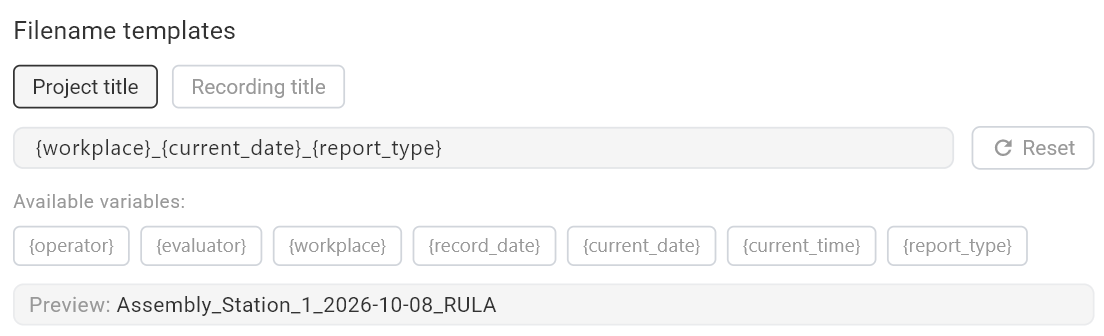
The template is editable — you can type any combination of plain text and variables. If a variable's corresponding field was left empty in the assessment, it is omitted from the title rather than appearing as a blank. You can always edit the pre-filled title manually in the save dialog before confirming.
3 Browsing and filtering your projects
Accessing the Projects Database
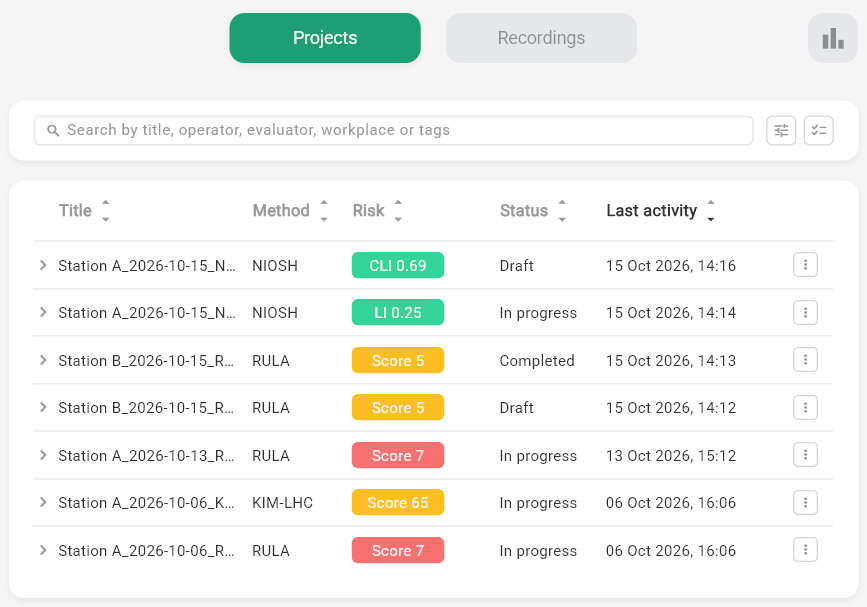
Click Database in the main navigation and open the Projects tab to see your project library. A search field at the top finds projects by title, operator, evaluator, workplace or tags. The list view shows each project's title, method, risk level, status, and last activity date at a glance.
The toolbar above the list also has an Open Power BI Template button, which opens a bundled Power BI report connected to your saved projects — see Power BI Reporting for how to connect it and what it shows.
Each project has an action menu (the ⋮ icon) on the right side with four options:
- Open — loads the project and takes you to the results page
- Export — saves the project as a portable file (coming in a future release)
- Duplicate — creates an independent copy of the project, with "(copy)" added to its title
- Delete — permanently removes the project from the Projects Database
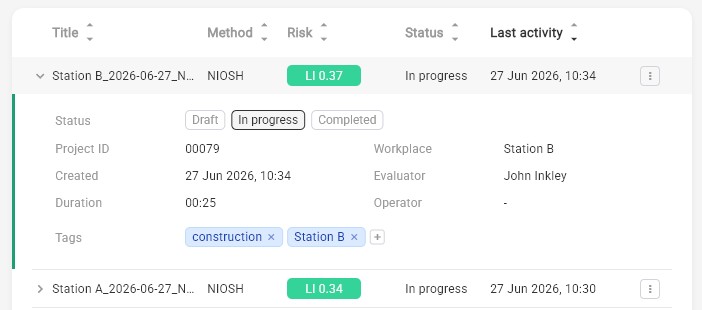
Click a project row to expand a detail panel with additional information — including the project ID, creation date, recording duration, workplace, evaluator, operator, tags and status. Tags and status can be changed directly in this panel.
When you save a project, Motionprint Ergo stores its own copy of the motion data with it, for the 3D viewer and the PDF screenshots. Moving, renaming or deleting the original file afterwards doesn't affect the project. If the motion data for a project can't be found when you open it, the app names the file and the folder it was last in, and lets you locate it so the project is reconnected.
Using filters to find projects
As your library grows, filters help you get to the right project quickly. You can filter by:
- Method — narrow the list to a specific assessment method
- Status — draft, in progress, or completed projects
- Risk level — filter by low, medium, or high risk based on calculated results
- Tags — show only projects with a specific tag
- Multiple values — combine filters to narrow further, for example "Completed AND High-Risk"
Use filters to quickly find all completed high-risk assessments, or all projects tagged for a specific workstation or site visit — without scrolling through your entire library.
4 Removing projects
The only way to remove a project from the Projects Database is to delete it, either from its action menu or several at once with Select multiple and Delete selected. Deletion is permanent — the project cannot be recovered once removed. Before deleting, consider whether the project may be needed for a future audit, compliance check, or methodology comparison. Delete only test runs, accidental saves, or clear duplicates you're certain you won't need.
There is no undo. If you're not certain you want to remove a project, leave it in the Projects Database — storage is not a reason to delete.
Exporting projects (coming soon)
A project export feature is planned for a future release. It will allow you to save a project as a portable file that you can store outside the Projects Database, share with colleagues on other machines, or re-import later. For now, use the PDF and Excel export options to produce shareable reports from any saved project.
5 Understanding project status
Each project in the Projects Database carries a status that reflects where it is in your workflow. You set it in the save window when first saving, and can update it at any time through the project detail panel.
- Draft — initial state; the assessment has been saved but is not yet finalized
- In progress — actively being worked on; used to signal ongoing review or editing
- Completed — marked as final; ready for reporting or PDF/Excel export
Status is one of the available filters in the Projects Database view, making it easy to separate active work from completed assessments at a glance.
6 Settings and reopened projects
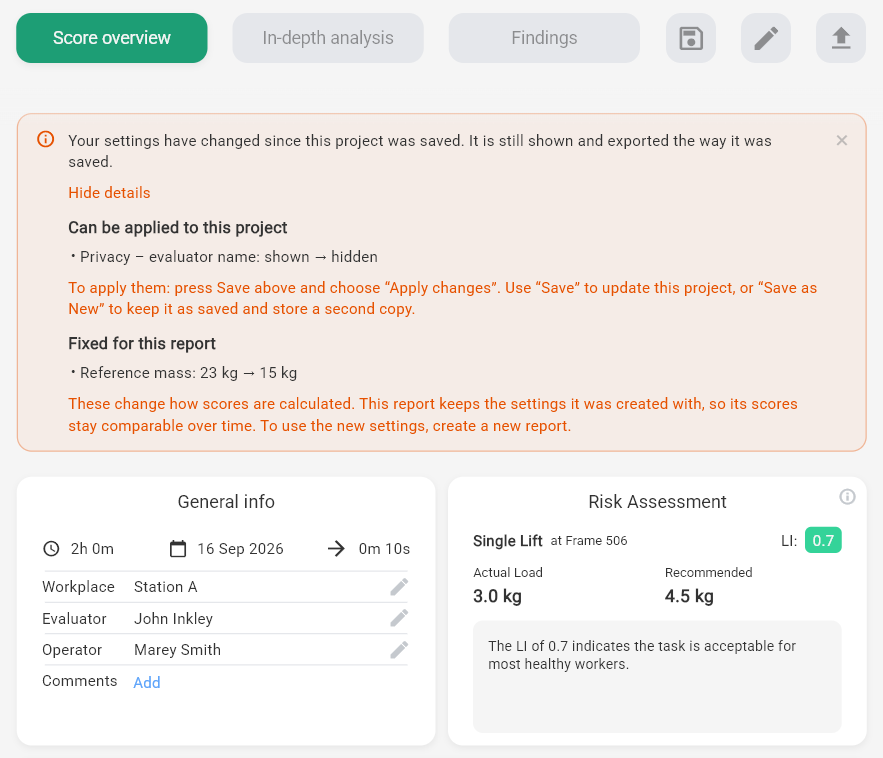
A saved project renders from its own snapshot of your settings. Changing a Report Setting afterwards never alters a finished report — it is still shown and exported exactly as it was saved. Two things surface that difference when it exists: a banner when you open the project, and a dialog if you save it again.
The banner when you open a project
Opening a project displays it as it was saved; no dialog interrupts you. If your current settings differ from the ones the project was saved with, an informational banner appears above the report telling you so. It performs no action of its own and can be dismissed with the close control in its corner.
Clicking Show details expands the banner into up to two groups, listing the exact settings that differ:
- Can be applied to this project — presentation settings, which change how the report looks rather than what it calculates. To adopt them, press Save and choose Apply changes.
- Fixed for this report — analysis settings, which change how scores are calculated. The report keeps the settings it was created with so its scores stay comparable over time. To assess under the new settings, create a new report.
The dialog when you save again
Pressing Save Project on a reopened project opens a Settings have changed dialog, but only when something actually differs. It shows the same two groups the banner does, and only the presentation group is a choice: Keep original or Use current. The analysis group is listed for information only — there is nothing to decide there, because those settings cannot be applied retrospectively.
Nothing is pre-selected. You confirm with Keep as saved or Apply changes, or back out with Cancel.
Which settings fall into which group
| Group | Settings | Can be applied to a saved project? |
|---|---|---|
| Presentation | Company name, company logo, primary colour, findings title, findings sections added, renamed or removed, and privacy field visibility | Yes |
| Analysis | NIOSH analysis mode (peak or origin/destination) and KIM-LHC load rating thresholds | No — create a new report |
A RULA score is driven entirely by the motion capture data, the posture tasks you marked, and the method's own published thresholds. Everything RULA exposes in its report settings — automatic critical moments, the averaged overview, export-only-average — changes what is displayed, not what is calculated. So on a RULA project any changed setting can be applied.
Save or Save as New
When a project has been opened from the database, the save window offers both. Save updates the existing project in place. Save as New leaves the original untouched and stores a second copy — useful when you want to adopt new branding or findings sections but keep the version you already shared.
The database keeps a complete history of your assessments — save your next analysis and explore the filters to get a feel for it. When you're ready to export, see Exporting Reports (PDF & Excel) for full details on export formats and filename templates.