This guide explains how to activate your Motionprint Ergo license, manage seat assignments across devices, and transfer your license to a new machine when needed.
1 License Activation
Your license key is provided by email upon purchase. It follows the format below and is entered directly in the application during first launch.
Online activation
Online activation is the standard method and completes in seconds. The application communicates with the Motionprint License Server to validate your key and register your device.
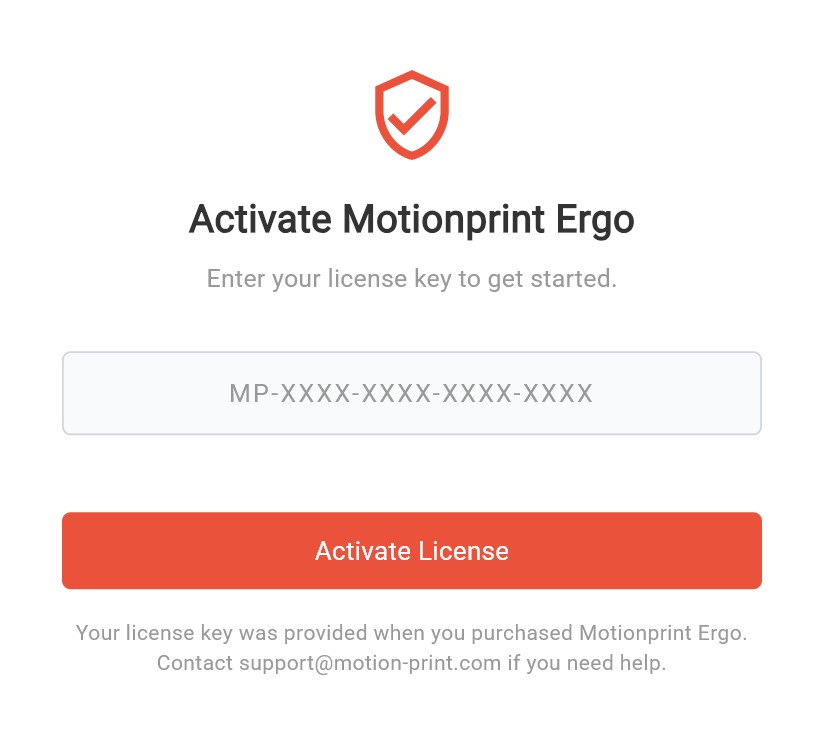
Open Motionprint Ergo. The activation screen appears automatically on first launch.
Enter your license key in the format MP-XXXX-XXXX-XXXX-XXXX and click Activate License.
The app submits your license key and machine fingerprint to the License Server for validation.
On successful validation, the license is activated and the application opens.
Initial activation requires an internet connection. Once activated, the app can run offline — see What's Included in Your License for details on the offline grace period.
Required information
2 Seat Management
Each license includes a set number of seats based on your plan. Each seat allows activation on up to 2 devices (for example, a workstation and a laptop). An Individual plan includes 1 seat (2 devices total).
Your license in the app
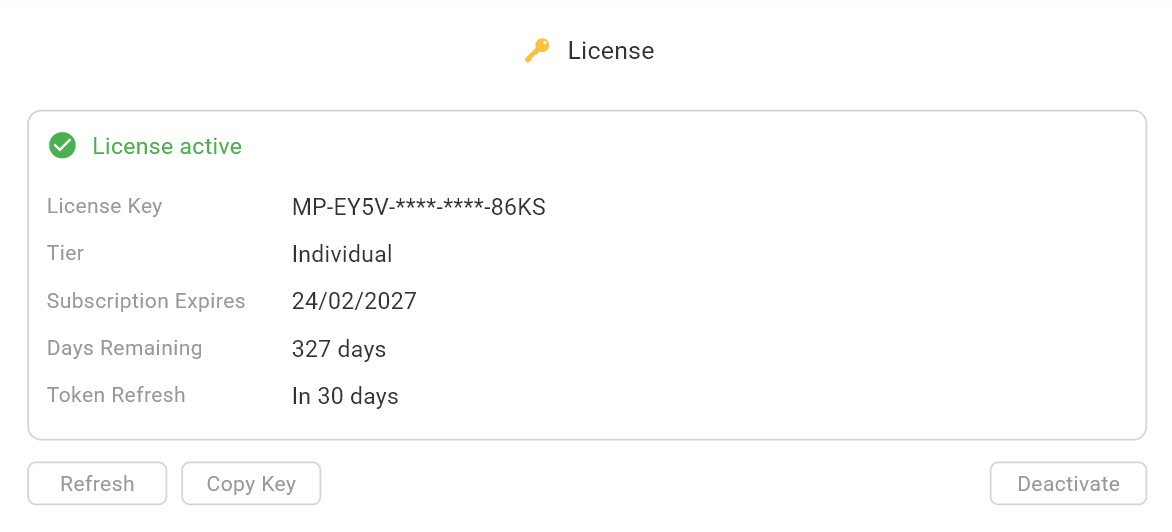
Go to Settings → License to see your license status, masked key, tier, subscription expiry date, days remaining, and token refresh countdown.
Freeing a device slot
To free a device slot — for example, to use your license on a different machine — deactivate it on the current device first, then activate on the new one.
On the machine you want to free, go to Settings → License and click Deactivate.
Confirm the dialog. The device slot is released immediately.
Activate the license on the new machine using the same key.
If you need to free a slot on a machine you no longer have access to, contact support@motion-print.com.
3 License Transfer
Transferring your license to a new machine follows the same deactivate-then-activate pattern. The license key itself does not change — it is reused on the new device.
Transfer steps
In Motionprint Ergo on the old machine, go to Settings → License → Deactivate. This releases the device slot, making it available for use on another machine.
Install Motionprint Ergo on the new machine, launch it, and enter the same license key. The activation completes online or offline as described in Section 1.