Motionprint Ergo works with motion data in two formats: the .mvnx file exported from Xsens MVN Analyze, and .mpcap, the format used for recordings captured live inside Motionprint Ergo itself. This article explains what each one is, where it lives, and how to choose between them.
1 Two ways to get motion data in
Every report in Motionprint Ergo — RULA, NIOSH, or KIM-LHC — needs motion capture data as its input. There are two ways to provide it: upload an .mvnx file, or select a recording made with live recording. Behind the scenes, those two paths correspond to two different file formats.
2 What is an .mvnx file
.mvnx is Xsens's own export format, produced by Xsens MVN Analyze. To use it in Motionprint Ergo, record in MVN Analyze, export an .mvnx file, and upload it as the input for a report.
Because it's a standard Xsens export, an .mvnx file is portable — you can move it between machines, share it with a colleague, or archive it independently of any particular Motionprint Ergo installation.
3 What is an .mpcap recording
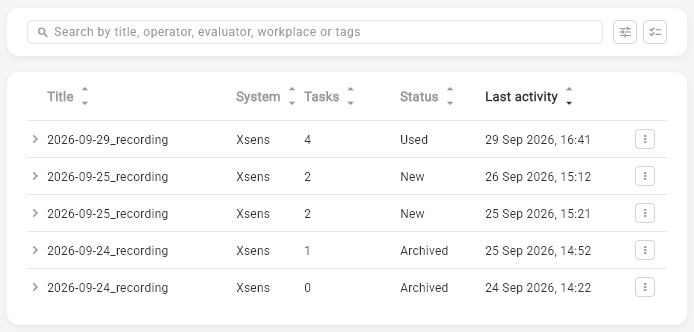
.mpcap is Motionprint Ergo's own recording format, used for captures made through live recording. Rather than being a file you manage yourself, an .mpcap recording is created automatically when you stop a live recording, and stored in your Recordings Database along with the recording's session, subject details, and any trim you've applied.
Because it's tied to a database entry rather than a standalone export, an .mpcap recording carries more context than a bare motion file — it stays linked to its session and, once used, to the report it produced.
4 Where each one lives
| .mvnx | .mpcap | |
|---|---|---|
| Created by | Xsens MVN Analyze, on export | Motionprint Ergo, when you stop a live recording |
| Where it's stored | Wherever you save the exported file | The Recordings Database, inside Motionprint Ergo |
| Portable file you manage? | Yes | No — managed through the Recordings Database |
| Playback & trimming | Not applicable | Yes, in the recording viewer |
5 Using either as report input
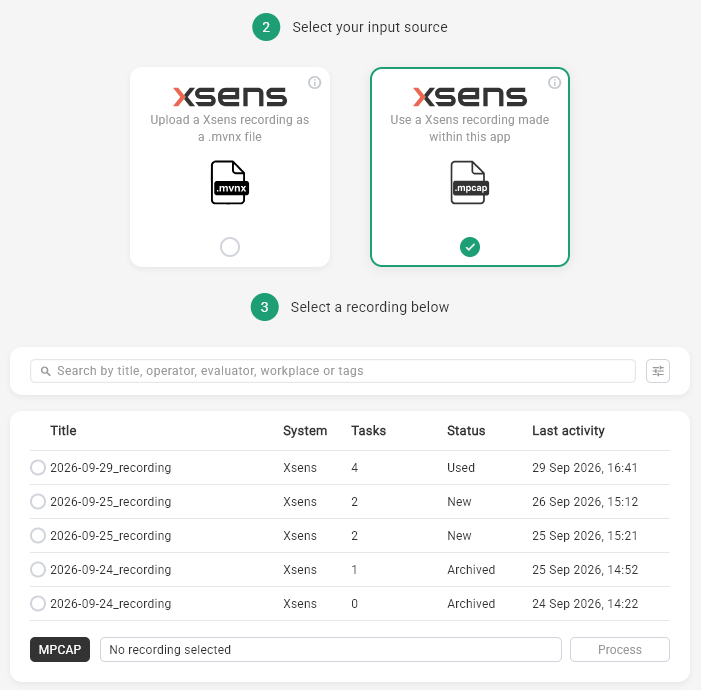
The distinction between the two formats disappears the moment you get to a report. On the input page for a RULA, NIOSH or KIM-LHC report, you'll find both options side by side: upload an .mvnx file, or select a recording from your Recordings Database. Whichever you choose, the calculation runs the same way.
6 Which one should you use
If you're already recording in Xsens MVN Analyze and have an established export workflow, continue using .mvnx. If you'd rather capture and assess a task without leaving Motionprint Ergo, or want to review and trim a recording before scoring it, use live recording and let Motionprint Ergo manage the .mpcap recording for you.
Ready to try live recording? Start with Record Xsens Data Live.