The Recordings Database is where every recording captured with Motionprint Ergo's live recording lives — alongside the Projects Database, but for raw recordings rather than finished reports. This guide covers browsing your library, filtering to find what you need, and using a saved recording as report input.
1 What is the Recordings Database?
Every recording made through live recording is automatically saved to the Recordings Database as an .mpcap recording — see .mpcap vs .mvnx Explained for how that compares to an imported .mvnx file. From here you can review any recording, trim it, and use it as the input for a new report at any time, without needing to record the task again.
The Recordings Database sits alongside the Projects Database — recordings are raw motion captures, while projects are the finished, saved reports built from them.
2 Browsing and filtering recordings
Open Database from the main navigation and switch to the Recordings tab. The list shows each recording's title, the system it was recorded with, the number of tasks marked in it, its status and its last activity.
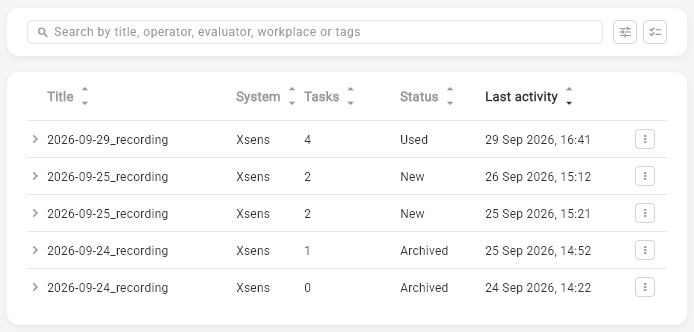
As your library of recordings grows, search and filters help you find the one you need. The search field finds recordings by title, operator, evaluator, workplace or tags. The filter panel narrows the list by:
- System — the capture system the recording was made with, such as Xsens
- Status — New, Used or Archived. Archived recordings are listed by default; filter on New and Used to hide them
- Tags — show only recordings with specific tags
New recordings get a default title from the Recording title template in Sidebar → Settings → General → Database. Its default is {workplace}_{current_date}_recording, and besides the date, time, workplace, operator and evaluator variables it offers {system} for the capture system.
3 Recording details
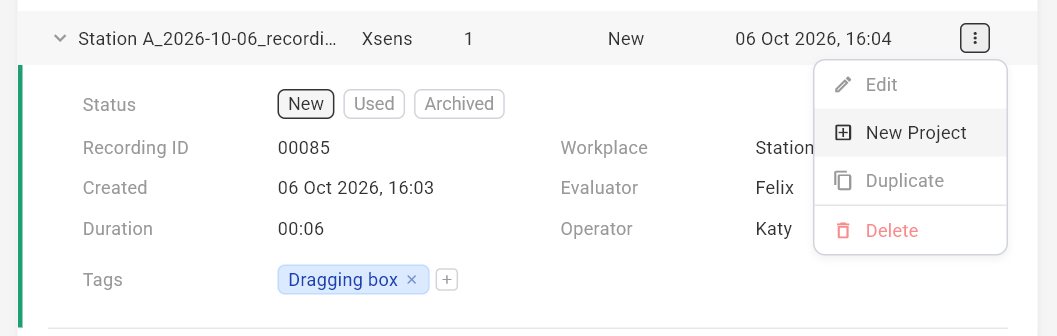
Click a recording's row to expand its detail panel: recording ID, creation date, duration, workplace, evaluator and operator, plus its tags and status. Tags and status can be changed directly in the panel. The status (New, Used or Archived) is yours to set; it doesn't change on its own when you use a recording in a report.
The action menu (the ⋮ icon) on each row offers:
- Edit — opens the recording in the recording viewer to play it back, trim it and edit its tasks
- New Project — pick RULA, NIOSH or KIM-LHC and go straight to that report's input page, with the recording's trim, tasks and metadata filled in
- Duplicate — creates an independent copy of the recording entry, with "(copy)" added to its title
- Delete — removes the recording from the Recordings Database
4 Using a recording as report input
There are two ways to assess a saved recording. From the Recordings Database, use New Project in the recording's action menu. Or start a new RULA, NIOSH or KIM-LHC report and, on the Input Source page, choose Use a Xsens recording made within this app instead of uploading an .mvnx file, then pick the recording from the list. Either way, the recording's trim range, tasks and metadata are carried over to the input page, and the report runs exactly as it would from an uploaded file. See Running a NIOSH Assessment for the full input flow.
Selecting a recording as input doesn't consume it — you can run the same recording through RULA, NIOSH and KIM-LHC separately, or reuse it later, since it stays in the Recordings Database independently of any report built from it.
5 Removing recordings
Recordings can be deleted from the Recordings Database the same way projects can be deleted from the Projects Database — one at a time from the action menu, or several at once with Select multiple — and deletion is permanent. Deleting a recording doesn't remove any report already created from it; the report keeps the data it was generated with.
There's no undo. If a recording might still be useful for a future report or a re-assessment, leave it in the database rather than deleting it.
Not sure whether to save something as a recording or import an .mvnx? See .mpcap vs .mvnx Explained.