This article walks through the complete process of running a KIM-LHC assessment in Motionprint Ergo — from selecting the report type to clicking Process. Every screen, field, and control is covered in the order you encounter them, for both ways of providing motion data: uploading an .mvnx file, or selecting a recording made in Motionprint Ergo.
1 Overview
A KIM-LHC assessment in Motionprint Ergo spans three separate screens and five numbered steps. The table below shows the complete flow:
| Step | Label in the app | Screen |
|---|---|---|
| 1 | Select the report you want to create | Create page |
| 2 | Select your input source | Input Source page |
| 3 | Setup your input source | Input Source page (same screen) |
| 4 | Trim the file and specify lifting tasks | Input page — 3D viewport on left, lifting tasks on right |
| 5 | Provide task information | Input page (same screen, scrolls down from step 4) |
After completing all five steps, the Process button at the bottom of the input page becomes active. Clicking it submits the assessment and navigates you to the report.
If you stop a live recording and choose New Project in the Save Recording window, then pick KIM-LHC, steps 1 to 3 are skipped: you land directly on the input page with the recording's trim range, tasks and metadata already filled in. See Record Xsens Data Live.
2 Select Report
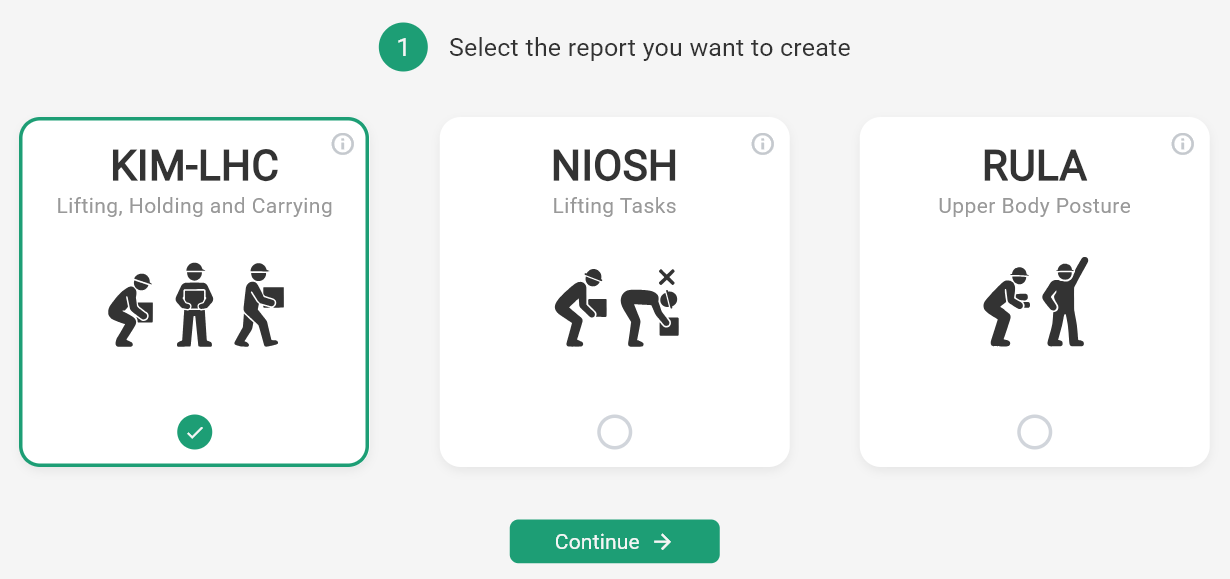
The assessment begins on the Create page, where you choose which type of report to run. Select the KIM-LHC tile from the available options, then click Continue to proceed to the next step.
KIM-LHC screens the physical load of lifting, holding and carrying. NIOSH looks at lifting alone but in more detail, and RULA is the better fit when the demand comes from sustained or awkward posture rather than from weight. Nothing stops you running more than one on the same recording — they answer different questions, and a task can easily be acceptable under one and problematic under another.
3 Select Input Source
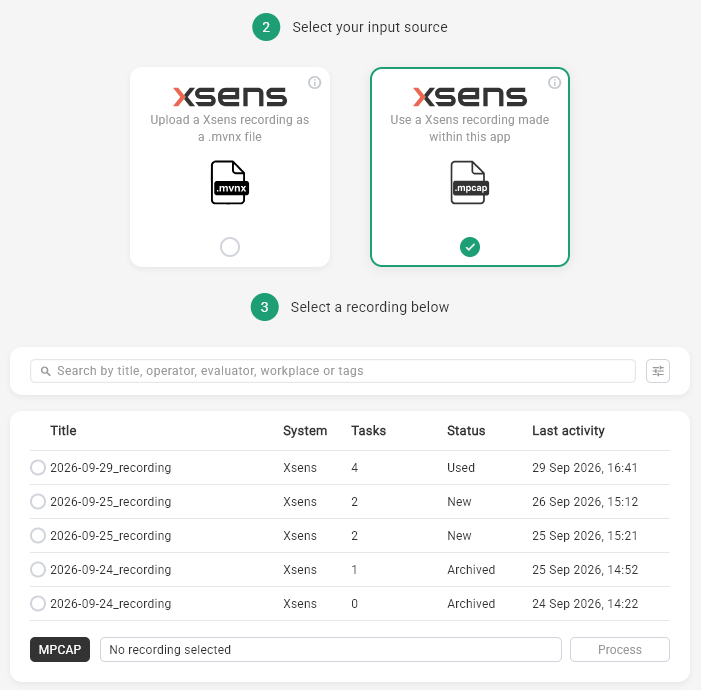
The next screen is the Input Source page, where you choose where the motion data for this assessment comes from. Two tiles are available:
| Tile | Use it when |
|---|---|
| Upload a Xsens recording as a .mvnx file | You recorded the task in Xsens MVN Analyze and exported it as an .mvnx file. |
| Use a Xsens recording made within this app | You recorded the task with live recording in Motionprint Ergo, so it is stored in your Recordings Database. |
Whichever you choose, the KIM-LHC calculation runs exactly the same way. See .mpcap vs .mvnx Explained for how the two formats compare.
4 Setup Your Input Source
What happens next depends on the tile you chose.
Uploading a .mvnx file
A file browser opens. Navigate to your .mvnx file and select it. Motionprint Ergo runs a quick structural check, and once the file passes it takes you to the main input page (steps 4 and 5). If the file is invalid or corrupted, an error message tells you what is wrong and you can select another file.
Before importing, export your session from Xsens MVN as a MVNX file. This format preserves all motion data and skeletal information needed for analysis. For a full walkthrough of the export and upload process, see Uploading & Processing Xsens Data.
Selecting a recording
A list of your saved recordings appears, laid out like the Recordings Database and with the same filters to help you find the right one. Archived recordings are included in the list; use the filter to hide them if you prefer. Select the recording you want to assess to continue to the main input page. No validation step is needed, because the recording was captured and checked by Motionprint Ergo itself.
Everything you prepared in the recording carries over to the input page:
- Trim range — becomes the observation window for the assessment.
- Tasks — every task defined in the recording appears as a lifting task, with its start frame, end frame and description.
- Metadata — workplace, evaluator, operator, age, gender, weight, tags and date are pre-filled. The date defaults to the date of the recording.
What a recording can't hold is the KIM-LHC-specific information per task, such as the load weight category. You fill that in per task on the input page.
Anything you change on the input page — the trim, tasks or metadata — applies only to this project. The recording itself stays exactly as it was saved in the Recordings Database, so you can use it again for another report. To change the recording itself, edit it in the recording viewer; see Reviewing & Trimming Recordings.
5 Trim the File and Specify Lifting Tasks
This is the main input page — a new screen with a 3D viewport on the left showing the loaded avatar and a lifting tasks panel on the right. If you selected a recording, the observation window and lifting tasks are already set from that recording; review them here and complete the KIM-LHC-specific fields for each task. Otherwise, this step is where you define the observation window and mark each individual lifting action.
The 3D viewport and playback controls
The viewport renders the motion capture recording as an animated 3D avatar, with the same camera views (3D, front, side and top) and playback controls used elsewhere in Motionprint Ergo:
- Play/pause button — Start or stop the animation.
- Speed selector — Choose playback speed: 0.5× (half speed), 1× (normal), 2× or 4×.
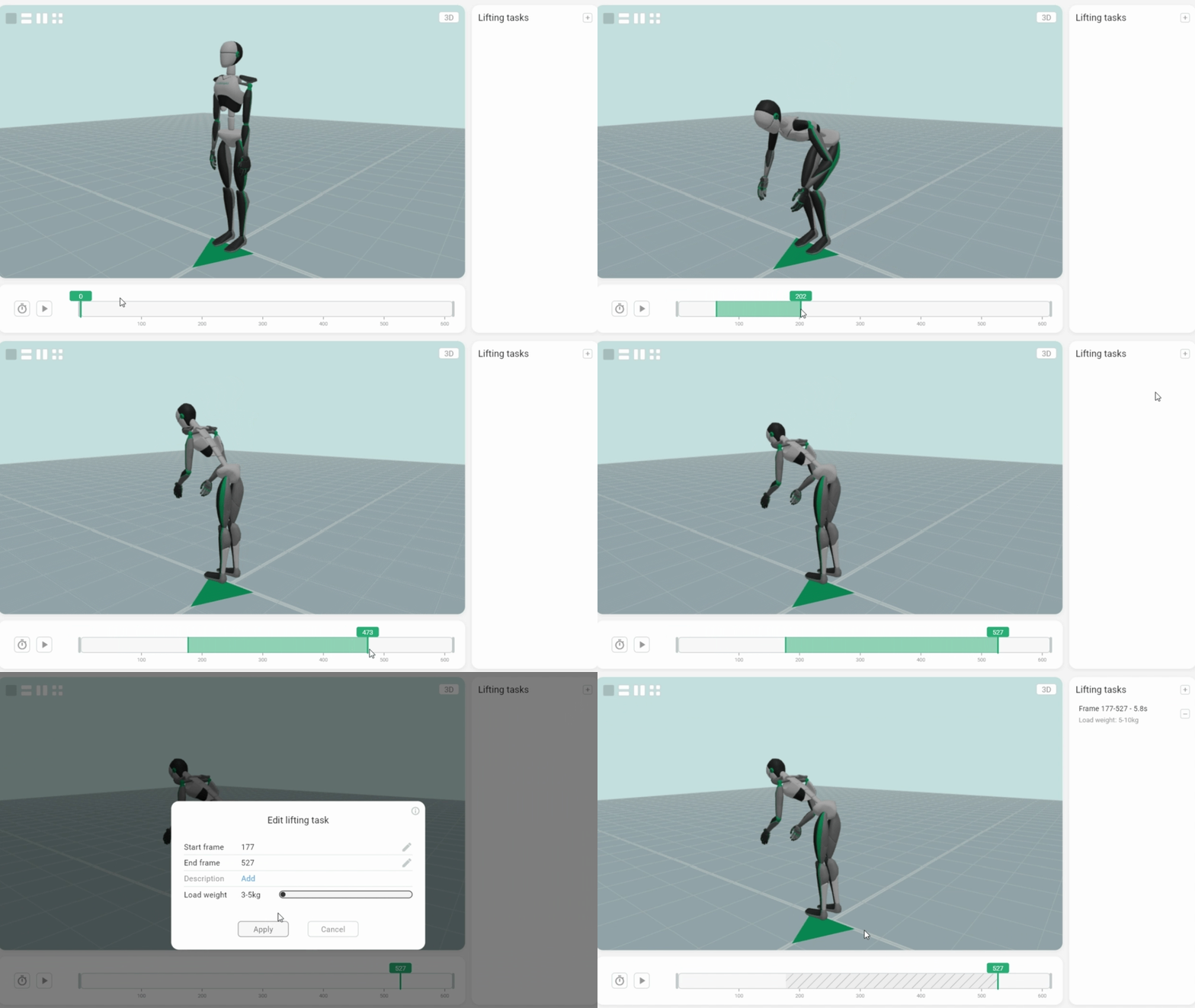
Below the playback controls is the timeline — a horizontal bar representing the full duration of the recording. You use the timeline to trim the recording and mark lifting tasks. On a long recording, scroll your mouse wheel over it to zoom in for frame-precise placement. For a full overview of the viewport controls and navigation, including zooming and panning, see 3D View & Interface Controls.
Trimming the observation window
The observation window defines which portion of the recording is included in the assessment. Anything outside the trimmed range is ignored.
Two draggable vertical handles appear on the timeline:
- Start handle (left) — Drag to set where the observation period begins.
- End handle (right) — Drag to set where it ends.
The region outside the two handles is shown in a shaded colour, indicating that part of the recording is excluded from the assessment. As you adjust the handles, Motionprint Ergo automatically recalculates the lift frequency — the number of lifting tasks divided by the trimmed duration. The KIM-LHC method requires a minimum of 5 cycles/day to assign a valid Time Rating. If the calculated frequency falls below this threshold, a warning is shown and the Process button stays disabled until you correct it.

The KIM-LHC Time Rating is determined by the calculated cycle frequency (tasks per day). A minimum of 5 cycles/day is required; below this the assessment cannot proceed. See the Understanding the KIM-LHC Assessment article for the full Time Rating table and multiplier values.
The trim range of a recording was set in the recording viewer, possibly before you knew which method you would use it for. Because the cycle frequency is calculated from the trimmed duration and the number of tasks, check that it still meets the minimum of 5 cycles/day. If it doesn't, adjust the handles here — the change only applies to this project.
Defining lifting tasks
A lifting task represents a distinct lifting movement within the observation window. Each task is defined by a start frame, an end frame, and a load weight category. Tasks must have a minimum duration of 1.0 second. Overlapping frame ranges between tasks are not permitted. To add a task:
- Click and drag on the timeline to highlight a frame range. The selection is shown in the branding colour configured in your settings.
- Click the + button to create a task from that range.
- The task appears in the list on the right. Fill in the required fields:
- Start frame — Auto-populated from your selection; editable.
- End frame — Auto-populated from your selection; editable.
- Description — A label for the task in the report.
- Load weight category — Select the weight bin that describes the load being lifted, using the slider. Available bins: 3–5 kg, 5–10 kg, 10–15 kg, 15–20 kg, 20–25 kg, 25–30 kg, 30–35 kg, 35–40 kg, >40 kg. The 0–3 kg bin is hidden by default and can be enabled in the KIM-LHC report settings.
Tasks from a recording are already in the list when you arrive, with their start frame, end frame and description filled in. Open each one and complete the load weight category — these are specific to KIM-LHC and are not stored in the recording.
You can edit or delete tasks in the list at any time. If you adjust the trim handles to exclude a task's frame range, that task is removed or adjusted automatically.
Multiple lifting tasks
You can define as many lifting tasks as needed within the observation window. In Motionprint Ergo, each KIM-LHC lifting task is scored independently. When the Generate averaged overview setting is enabled in the KIM-LHC report settings and you have two or more tasks, an additional averaged overview is computed across all tasks. For a full explanation of how multi-task scoring works, see the Understanding the KIM-LHC Assessment article.
6 Provide Task Information
Still on the same input page, scrolling below the timeline and task list brings you to the task information form. This collects metadata and working condition details about the assessment. Some fields are always shown; others appear or are hidden based on your KIM-LHC report settings.
If you selected a recording, the metadata fields are pre-filled from that recording — workplace, evaluator, operator, age, gender, weight, tags and date. Review them and fill in anything that is still empty; as with the trim and tasks, changes here apply only to this project.
Task information cards
Two side-by-side cards collect session metadata.
The left card contains:
| Field | Required? | Description |
|---|---|---|
| Workplace | No | Name or description of the workstation being assessed (e.g. "Assembly Line Station 3"). Always visible; cannot be hidden in settings. |
| Evaluator | No | Name or ID of the assessor. Can be hidden via the privacy settings. |
| Operator | No | Name or ID of the worker being assessed. Can be hidden via the privacy settings. |
The right card contains:
| Field | Required? | Description |
|---|---|---|
| Date | Yes | The evaluation date. Defaults to today's date, or to the date of the recording when you selected a recording as input. Can be changed. |
| Station time | Yes | Time spent at this station performing the same repetitive movement, entered using separate hours and minutes pickers. Used to calculate the cycle frequency for the Time Rating lookup. |
| Gender | No | Worker gender — Male or Female toggle. Determines which load rating reference values are used in the report. When Gender not required is enabled in the KIM-LHC report settings, the field is hidden and no gender distinction is made; the more conservative female reference values are applied across the board for a safer result. |
| Age | No | Age of the worker being assessed. Can be hidden via the privacy settings. |
| Weight | No | Body weight of the worker being assessed. Can be hidden via the privacy settings. |
Working conditions
Below the task information cards, five required fields capture the working conditions at the station. All five must be set before the Process button becomes active. The fields are arranged in two rows:
Row 1:
| Field | Options | Description |
|---|---|---|
| Adverse ambient conditions | No / Yes | Select Yes if the worker is exposed to significant adverse environmental factors — such as heat, cold, humidity, whole-body vibration, or dust — that increase physical strain beyond normal conditions. Select No if conditions are within normal ranges. |
| Impairing clothes or equipment | No / Yes | Select Yes if the worker wears personal protective equipment or clothing that noticeably restricts freedom of movement — for example, heavy protective suits, gloves that limit grip sensitivity, or respiratory protection that increases exertion. Select No if standard work clothing is worn. |
| Spatial conditions | Good / Restricted / Unfavorable | Describes available working space. Good: sufficient space for all lifting movements with no constraints. Restricted: limited space requires occasional postural adjustments or compromises. Unfavorable: severely cramped conditions force significant postural constraints throughout the task. |
Row 2:
| Field | Options | Description |
|---|---|---|
| Work organization | Good / Restricted / Unfavorable | Describes the overall work rhythm and recovery opportunity. Good: adequate recovery times, varied tasks, no significant time pressure. Restricted: moderate time pressure or reduced recovery; some ability to self-pace. Unfavorable: high time pressure, minimal recovery time, monotonous repetitive work with no meaningful pauses. |
| Force transfer and application | Easy / Restricted / Hindered | Describes how easily force can be transferred between the worker and the load. Easy: good grip surfaces, stable load, smooth and controlled transfer. Restricted: moderate grip difficulty or a somewhat unstable load requiring extra care. Hindered: poor grip, unstable or difficult-to-handle load, awkward force application throughout the lift. |
Each field has an info icon you can tap to read a short in-app description of the options.
All five working condition fields are required. The Process button stays disabled until every field has a selection.
7 Processing the Assessment
Once all required fields are filled, at least one lifting task is defined, and all five unfavorable working condition fields are selected, the Process button at the bottom of the input page becomes active. Click it to submit the assessment. If anything is still missing, the app lists exactly which items to complete rather than showing a generic error.
A loading overlay appears showing progress and current status as the KIM-LHC calculation runs. Once complete, Motionprint Ergo automatically navigates to the report view, where you can review the Score Overview, Analysis, and Findings tabs. For a full walkthrough of every section in the report, see Reading the KIM-LHC Report Results.
If an error occurs during processing, an error message is displayed. You are returned to the input page where you can correct the issue and try again.
Making changes after processing
If you are on the report page and want to adjust any input — tasks, task information, or working conditions — click the Edit button on the report page. This returns you to the input page with all your existing settings intact, so you can make changes and re-process without starting over.
Once you're happy with your results, click Save Project to store the assessment in the Projects Database for future reference. If you used a recording as input, it stays in the Recordings Database unchanged, ready to be used for another report. You can archive completed projects or delete duplicates to keep your library organized. See Projects Database for details.